-->
Showing posts with label tech. Show all posts

Tuesday, May 19, 2015

Adobe Split Window!

Happy Tuesday!


I re-discovered something really useful about Adobe yesterday. If you are looking at one PDF file and are finding yourself flipping back and forth between different parts of the file over and over (e.g. if you are comparing contents from one page to the contents of another page), there is a very useful feature that allows you to see two parts of the same document at the same time.

Just click and drag down this little bar on the top right of your document, and it will split the screen!

In this example. I’m looking at the US Government’s 2014 Financial Statements, and want to read the notes to the financial statements that relate to the specific liabilities line item of Federal debt securities held by the public and accrued interest (Note 12).

Once you’ve split the screens, you can independently zoom in and out, and scroll up and down in each of the two parts of the window.


And now here’s how it looks dragged down. Note I have zoomed in on the top part, and zoomed down and scrolled to the Notes in the bottom part.


If you want to scroll up or down in either section, simply hover your mouse over that part of the window and use the mouse scroll wheel. No need to click on it first.

Enjoy!


Wednesday, November 27, 2013

Tech Tip Thanksgivukkah! Google search tips


Happy Thanksgivukkah, Tech Tip group! Before my tech tip today, I want to share a song I wrote to celebrate the coming together of Thanksgiving and the first day of Hanukkah, an event that only happens once every 70,000 years or so. Here is the link: https://www.youtube.com/watch?v=2zCBEv3KsC0  **CAUTION: This video contains photos of Turkeys, which may make you hungry!**

Thanksgiving Tech Tips
This week’s tech tip includes a few tips while searching the internet through Google. I have catered it to a Thanksgiving theme.

Google Search by Specific Site
Google has a really neat feature you can use to specify which site to search from. All you have to do is add “site:(insert URL here)” to your search. For example, if you want to search for “stuffing” on the vegan recipe site veganyumyum.com, you would type “stuffing site:veganyumyum.com” – here’s what the results look like: http://bit.ly/Ihcsa2

I find this very useful when I know which website in which I want to search, but when I know their internal search is nowhere near as good as Google’s.

Google Search by Timeframe
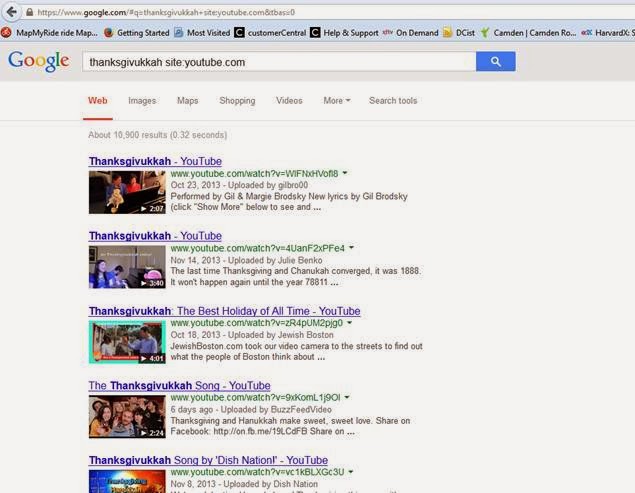
Another search tip is when you’re trying to find current events or news that is very recent. You can specify the time-frame of your search in Google based on how recent the results are. For example, if you search google for “Thanksgivukkah site:youtube.com” it will show you all results no matter when they were posted.


But if you want to specify the timeframe, you can click “Search tools”, and then click the “Any Time” dropdown, and select “Past 24 hours”, it will show you just the results that showed up over the past 24 hours. If you do this, you can find the Thanksgivukkah video I uploaded yesterday called “Thanks a Latke”!


Happy holidays, everyone!

Daniel

Thursday, May 23, 2013

Word Review Comments automatically turning into "A"


Hi there, tech tip Tuesday group! It’s been a while since the last one, so I figured this next one should be a very useful tip.

Have you ever used word review comments, and as soon as you hit save, word turns your initials into an “A” along with all the other review comments? That’s the result of a feature in Word to remove personal information from the document. This might be a useful feature if you’re looking to incorporate comments from several different authors and then submit as one combined effort. However typically it just gets really annoying because it makes it hard to tell which comments came from whom.

Fortunately, it’s easy to stop Word from doing this by doing the following:

Check to see if the option to "Remove personal information from file properties on save" is unchecked. If it's unchecked, you should be ok. If it's checked, then uncheck it. You can find it through Office Button | Word Options | Trust Center | Trust Center Settings | Privacy Options.

Step 1:

Step 2:
 

Step 3:

Boom!